If you’re new to TikTok and wondering how to edit videos that actually look good and get views, you’re in the right place.
Editing TikTok videos isn’t about being a professional video editor — it’s about learning a few simple techniques that help your content look clean, engaging, and easy to watch. With the right tools and steps, anyone can create scroll-stopping TikTok videos in minutes.
In this beginner’s guide, you’ll learn exactly how to edit TikTok videos step by step, which tools to use, and how to avoid the most common mistakes.
What Is TikTok Video Editing?
TikTok video editing is the process of trimming, arranging, and enhancing your video clips to make them more engaging for viewers.
This usually includes:
- Cutting out unnecessary parts
- Adding text or captions
- Syncing clips with music
- Applying simple effects or transitions
Good editing helps you keep people watching longer — and the longer people watch, the more TikTok shows your video to others.
Plan the TikTok Videos
Before even beginning to record the TikTok video, create a script to film it, and try to answer the following questions:
- What is the video going to be about?
- What is the purpose of the video?
- What do you want to show in the video?
- Who will participate in the video?
- What will be the scenery?
- What are the lines of each participant?
Writing a script doesn't mean the video is going to be too structured and not seem casual or spontaneous. You can still leave room to improvise and change the lines as the video is recorded. However, the script works as a guideline and helps to avoid forgetting to film something important, for example.
Besides, it will help to edit the TikTok video too. When editing you or the person who will edit the content for you already knows the main idea of the content and will be able to use the proper tools to deliver the best result.
How to Film the TikTok Video
When it comes to filming a TikTok, you have some options: record the video directly from the TikTok app, use the smartphone camera or another type of camera, and send the videos to your smartphone afterward.
Regardless of your choice, always remember to film the videos vertically. You can record multiple takes and put them together when editing the video, or make just one take, which facilitates the editing process.
When recording, remember to check if the place you choose has good lighting and if the audio is good as well. You can also record the audio separately and use a sound wave generator during editing to create stunning animated sound waves for your video.
TikTok is a vertical platform, so always record your videos in 9:16 format (full screen on your phone).
Tips for better footage:
- Hold your phone vertically.
- Use natural light or a ring light.
- Make sure your voice is clear.
- Keep the camera stable.
Good quality footage means you’ll spend less time fixing things during editing.
How to Edit TikTok Videos
Regarding how to edit TikTok videos, you can enjoy the editing tools the app itself offers to the users or choose a video editing app, edit the video on it, and upload the final version to TikTok. Choose the way that allows you to get the best result, and provides you with the features you need to make the content you envisioned.
Use the TikTok App to Edit the Videos
1. Upload or Record the Video
If you have already recorded the video for TikTok, upload it to the platform. Otherwise, you can record it using the TikTok app. If you choose the second option, you can set the timer to define if you want to record 15 seconds, 60 seconds, or 3 minutes. This way, you don't have to keep the record button pressed, and you can use your hands freely.
When using the TikTok app to record, you can add some features even before the edits. It allows you to adjust the video speed, add a filter, and insert a question to answer. Just press the red button to start. If you need to stop the recording, press the same button again. The take will be saved, and you can restart from where you have stopped.
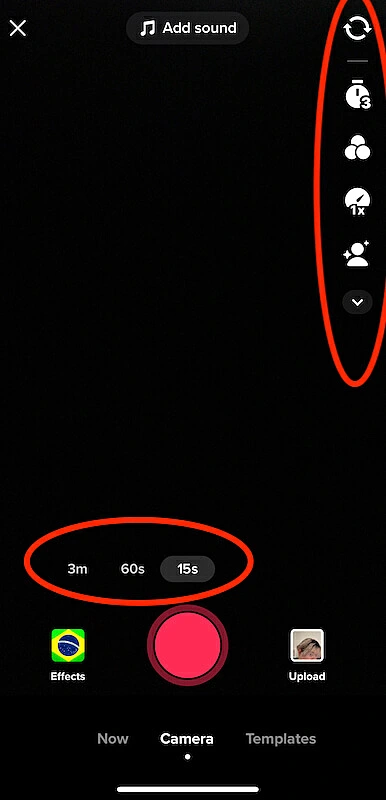 How to edit tiktok videos - record
If you have already recorded the video, but didn't edit anything, click on the upload button on the right side of the screen. Click on "Select multiple" to choose more than one take or image, and upload them all.
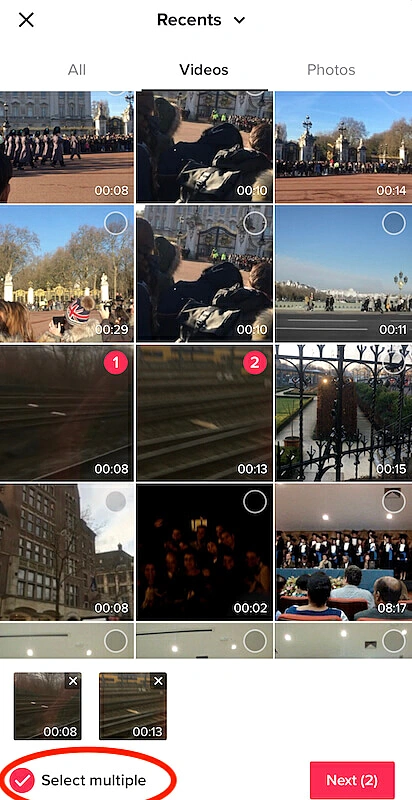 how to edit tiktok videos - select videos
2. Adjust the Clips
After recording, it's time to edit your TikTok. To define the video duration, choose the best takes, insert images, and insert images and transition effects between them, and click on the adjust clip icon.
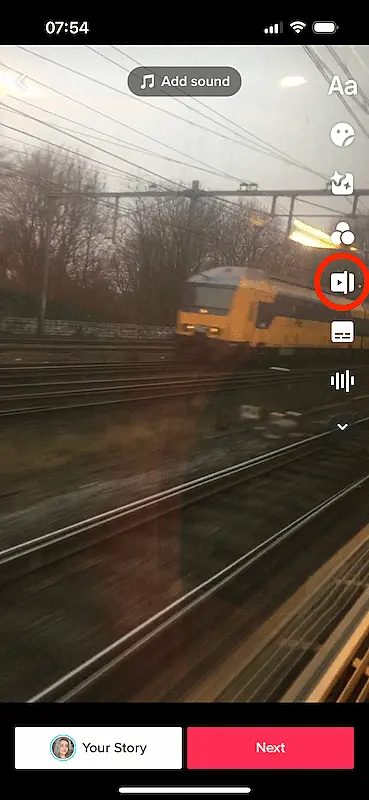 How to edit TikTok videos - adjust clip
You can trim the video, split it into parts to edit each one separately, and include more takes or images by clicking on the "plus" button. You also have the option to insert clips from the TikTok video library.
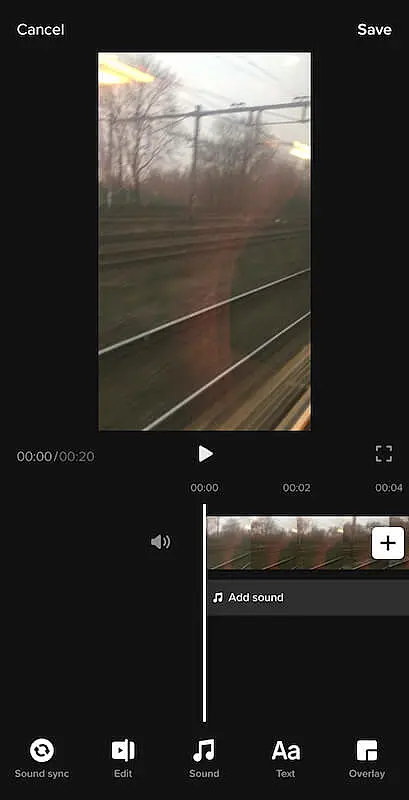 How to edit tiktok videos - edit
3. Add Sounds
If you don't want to use the audio from the video or you wish to mix it with songs and sound effects, click on the "Sound" button. Choose if you want to add sound, which can be an audio record you made, or select a sound effect or song available on TikTok.
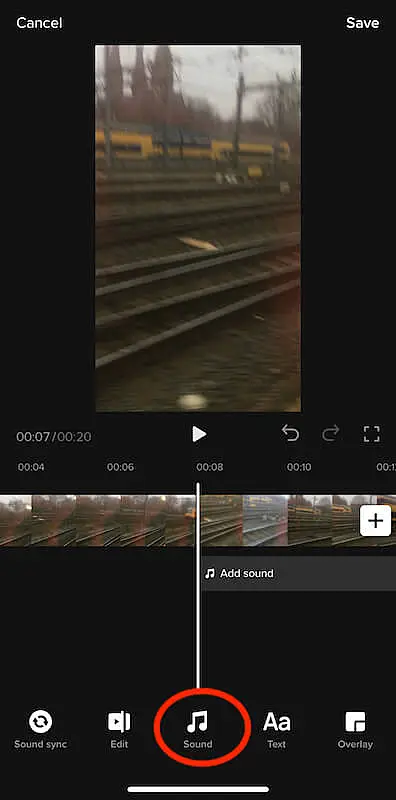 How to edit tiktok videos - add sound
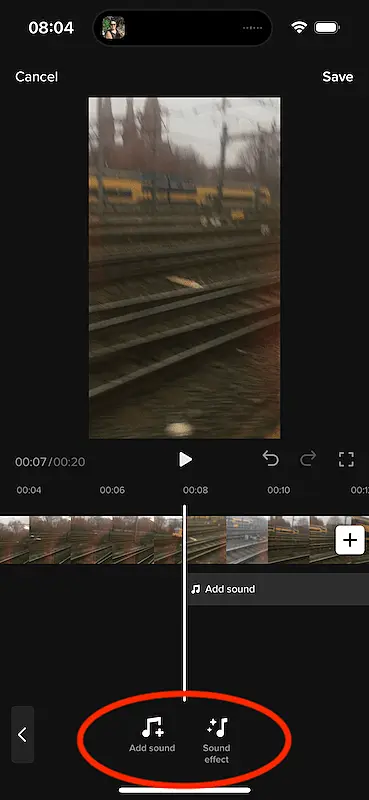 How to edit tiktok videos - sound
Then, you will need to adjust where to put the selected sounds and songs in the video. For example, if it's a sound effect that you will use to open the video, continue with your narration, then end with a piece of a song.
4. Add Filter
TikTok enables you to use image filters as well. You can choose from hundreds of them. There are filters to make the colors more vibrant, turn the video into black and white, add makeup to your face, or apply special effects such as sparkles and snow.
Click on the filter icon, select the part of the video to include it, then click on the filter you wish to insert and keep it pressed. The color of the video parts where the effect is added will be shown differently, so you can detect them when editing.
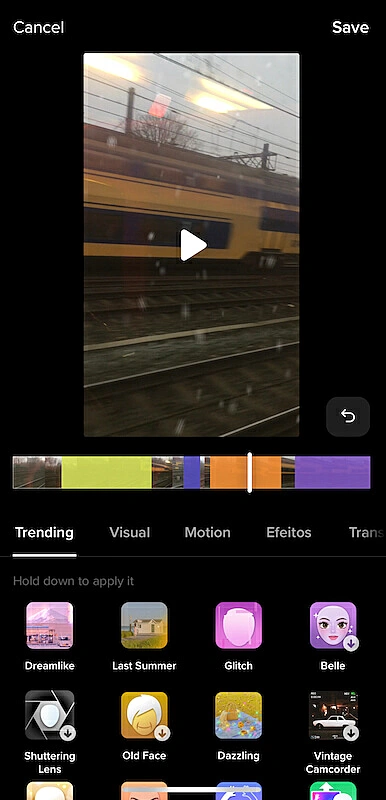 How to edit tiktok videos - filters
5. Add Stickers
Another feature TikTok offers is stickers. It's very simple to add them: click on the sticker icon, and choose the ones you wish to use. You can put time, location, and hashtag stickers, for example. Resize and position them the way you prefer.
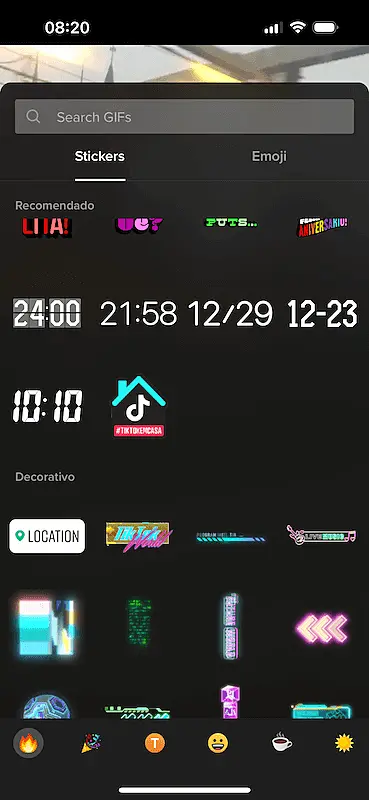 How to edit TikTok videos - stickers
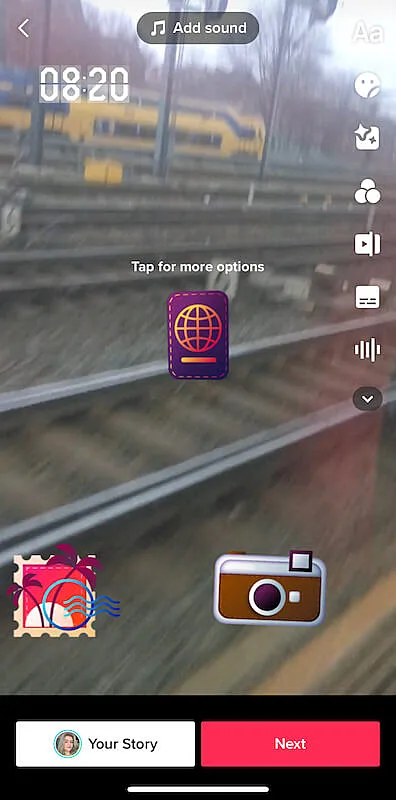 How to edit TikTok videos - video with stickers
6. Add Text
To add text using TikTok edition tools, click on the text icon on the right side of the screen. After it, you can write what you want, and choose the font type and the color. Click upon the text to place and resize it.
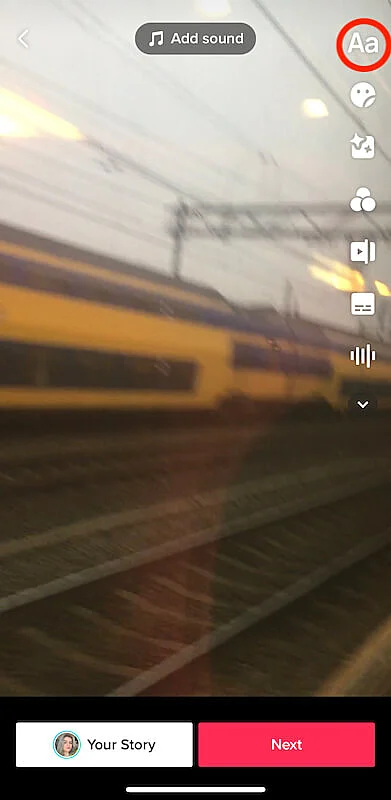 How to edit TikTok videos - add text
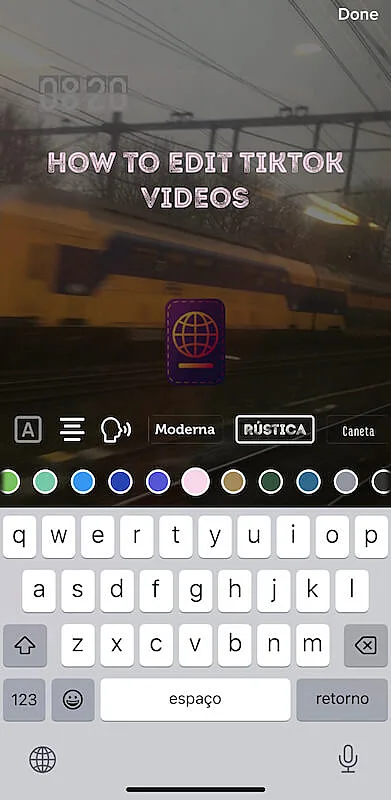 How to edit TikTok videos - text
7. Rewatch the Video
After you have finished editing the TikTok video, play it again to check every detail and make sure you didn't forget anything. Then, click on "Next", write the caption for the video, tag people, and insert the location if you wish. To publish it, press "Post". If you want to publish the video later, just click on "drafts and it will be saved in the platform for you to select the best time to post on TikTok.
Use a Video Editor
Another option when it comes to how to edit TikTok videos is using video editing software. In this case, the whole process of creating the video will be made outside the social media platform. Choose the software you are acquainted with, upload the images and clips you will use, and enjoy its features to edit the video.
Remember to follow the TikTok format, the video should be vertical, and the length cannot be up to 10 minutes. After editing the video, rewatch it, transfer it to your smartphone, in case you have used your computer to make the edit, and upload it to TikTok. Then, follow the standard process to publish the video.
Best Video Editors for TikTok
1. CapCut
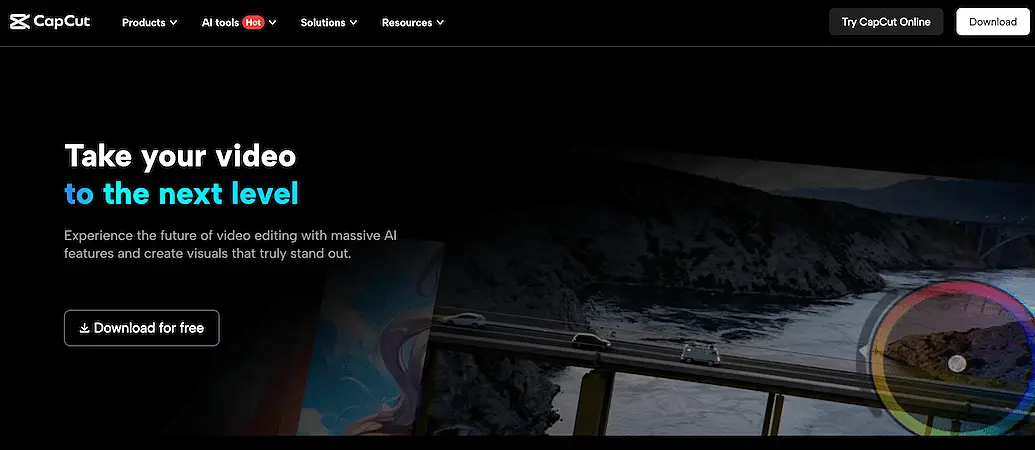
CapCut offers a range of tools to edit your videos as you desire. You can even use AI to enhance their quality and add special effects as well. The platform offers several effect options, powerful search tools that enable you to locate media based on objects, dialogue, and people, as well as advanced keyframes and graphs to create smooth and precise animations.
You will also encounter a variety of AI-generated video effects, and you can use artificial intelligence to generate images as you have envisioned them. Enjoy the Script to Video tool to generate AI videos according to the script you write.
Key features:
- Massive effects
- Powerful searching tools
- Keyframes and graphs
- Color wheel and auto adjust
- AI-generated video effects
- Script to video
- AI writer
2. Descript
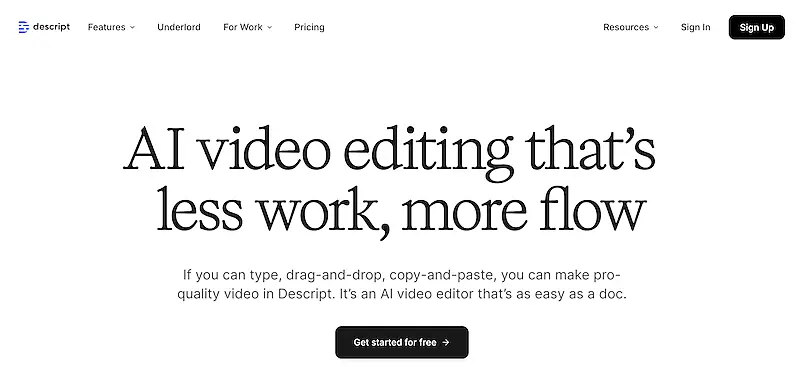
Descript AI video editing tool allows you to edit your videos differently. Instead of using the video timeline to cut it, you get a transcript generated automatically to be used to edit your video. Underlord is Descript's AI video editing assistant that enables you to remove video backgrounds, turn one video into several clips for social media, remove retakes, and much more.
Underlord analyzes your video, identifies cuts that can go viral, and creates new clips that you can edit in the format you want. You can enjoy Descript's pre-made video templates to make them even more attractive or create a customized template.
Key features:
- Auto-generated transcript
- Text-based editing
- AI video editing assistant
- Remove retakes
- Remove background
- Turn a single video into multiple clips
- Pre-made video templates
- Fix audio errors
- Enhance voices
- Filler word removal
- Translate videos
3. InVideo
 How to Edit TikTok videos
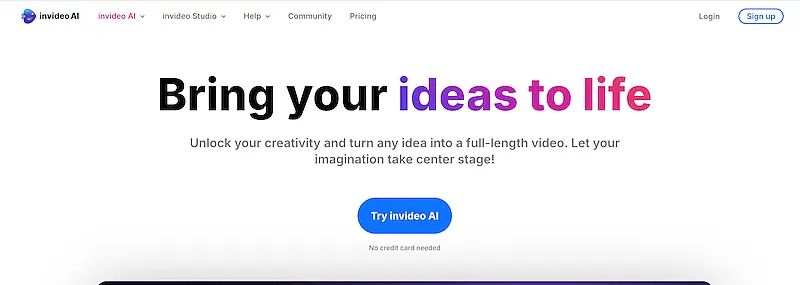
InVideo is an online video editor that offers more than 5000 templates, iStock Media, music library, filters, and more. You can trim, crop, make transitions, add texts, stickers, edit audio, and even develop a brand kit to be applied to every video with just one click.
Do you want your team members to help to edit the video? InVideo enables you to add them to the project, so they can also edit and insert comments. The platform also provides AI-powered themes to convert texts to video.
Key features:
- More than 5000 templates
- iStock Media
- Music library
- Special effects
- Add team members
- Convert texts to video
4. Movavi
 How to edit TikTok videos- Movavi
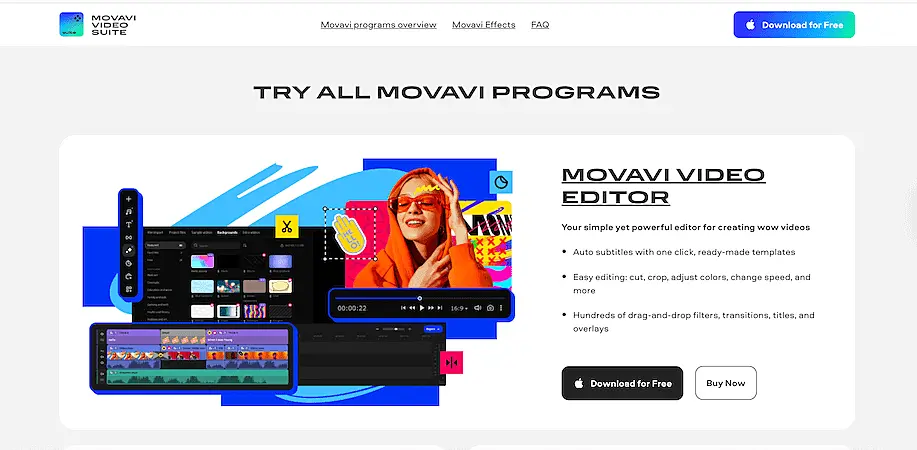
Movavi is a multimedia software that allows you to edit your Instagram videos on the desktop or directly on your smartphone. You can choose what you prefer. It's possible to add special effects, stickers, music, titles, and fades, use the slideshow creator mode, improve video quality, and save the project in different formats.
If you want to do a video by recording your screen, for example, a tutorial about how to install an app, Movavi has a special feature for that. It enables you to capture your desktop activity in Full HD or 4K.
Key features:
- Add special effects
- Convert between more than 180 media formats
- Slideshow maker
- Screen recorder
- Works with Full HD and 4K
- Presets for more than 200 devices
5. ApowerSoft
 How to edit TikTok videos - ApowerSoft
Through ApowerEdit, ApowerSoft provides a complete video editing app for Instagram, which includes a variety of tools to help you easily create amazing video content. You can cut, split, merge, rotate, mix video clips, accelerate or slow down the video speed, and insert video effects.
The app allows you to transfer videos from your camera and smartphone to your PC, and the other way around as well. You will be able to create text animations, apply color and motion filters, among many other possibilities, and when you finish editing, you can export the video in the format you want.
Key features:
- Create professional videos
- Insert visual and audio effects
- Apply color and motion filters
- Save videos in different formats
Common TikTok Editing Mistakes to Avoid
Beginners often make these mistakes:
- Videos are too long.
- No hook at the beginning.
- No captions or subtitles.
- Poor lighting or audio.
- Too many effects.
Fixing just one or two of these can dramatically improve your results.
Best TikTok Editing Tips for Beginners
- Start strong in the first 3 seconds.
- Keep videos under 30 seconds when possible.
- Use text to support your message.
- Edit on your phone — it’s faster.
- Learn from trending videos in your niche.