A virtual phone number for WhatsApp lets you register the app with a line that is not your personal SIM—useful for freelancers, small businesses, and support teams who want a dedicated WhatsApp Business channel without buying a second phone.
WhatsApp is a primary contact path for many shoppers; when customer support via WhatsApp is missing, some users abandon a purchase. A virtual number keeps your private mobile hidden while you answer from one inbox—especially if you connect chats to a CRM.
This guide explains why teams use virtual numbers, which third-party tools can provide them, how to verify WhatsApp, and how to pair the setup with a WhatsApp bio customers recognize.
Why Use A Virtual Phone Number for WhatsApp
One of the main reasons to use a virtual phone number is to keep your privacy. Your phone number won't be visible helping to avoid scam calls, for instance. By linking your business to a WhatsApp account, you can improve customer service, and offer personalized support, which is great to increase customer loyalty and sales.
You won't need a SIM card, and your WhatsApp messages can be integrated with CRM software, like JivoChat, and accessed on multiple devices. This way your team can keep track of the messages received and make sure customers are answered fast, with effective solutions.
How to Create A Virtual Phone Number for WhatsApp
When it comes to how to create a virtual phone number for WhatsApp, you can choose from several third-party apps that will help you with that.
SMS-MAN
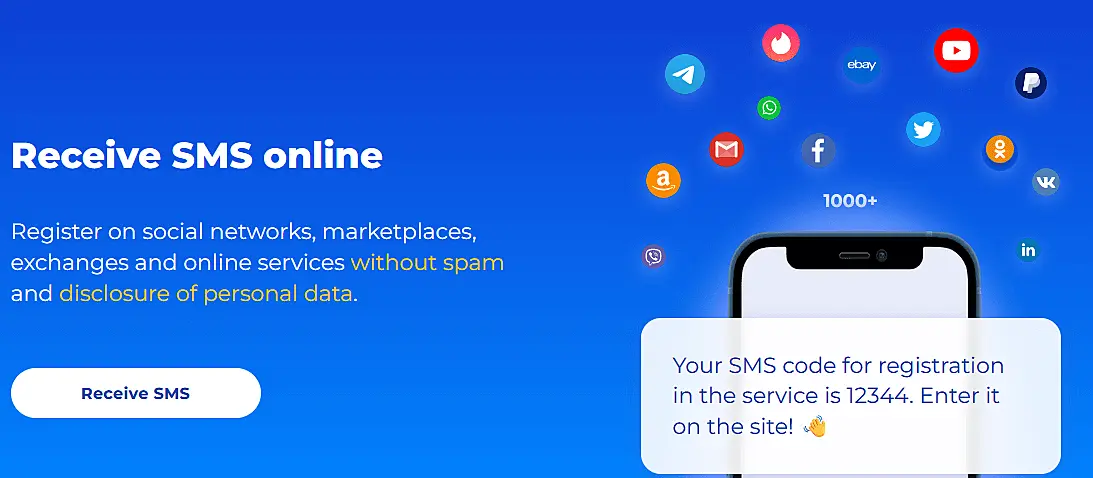
SMS-MAN allows you to purchase a virtual number for registration on WhatsApp and other popular platforms, such as Telegram, Viber, and Instagram, starting from just $ 0.05. The entire process is automated and occurs in a user-friendly interface. All you need to do is:
1 - Create an account on the SMS-MAN website
2 - Select "Top up my balance" from the menu on the left and choose the payment option that suits you best..
3 - Customize the geographical verification settings as per the requirements. You can choose any country number regardless of your actual location.
4 - Then, find WhatsApp in the list of services and click on the "Buy SMS" button.
5 - The system will automatically add the virtual number to the "History" section, copy it.
6 - Use the new number in the WhatsApp registration process, and wait for the code to be sent.
7 - Then, go back to the SMS-Man portal and click on the "Get SMS" button in front of the number.
8 - Finalize the account registration by entering the special code.
Text Now
 How to create a virtual phone number for whatsapp text now
Available for Android and iOS, Text Now is an easy-to-use app that will enable you to create a virtual phone number with just a few steps.
1 - Download the app.
2 - Open the app, then insert your area code.
3 - The app will generate 5 virtual phone numbers, choose the one you prefer.
4 - Uninstall WhatsApp from your smartphone, and reinstall it again
5 - When you open WhatsApp to set up the account, insert the virtual phone number.
6 - Choose to receive the verification code by phone call. With TextNow running in the background, you will receive the call on your virtual number.
7 - Insert the verification code on WhatsApp, and you are ready to start receiving messages and calls through the app.
VirtualPhone
 How to create a virtual phone number for whatsapp VirtualPhone
The process to create a virtual phone number for WhatsApp with Virtual Phone is very simple and similar to when you use Text Now.
1 - Download the app.
2 - Open the app, then insert your area code.
3 - The app will generate a virtual phone number.
4 - Uninstall WhatsApp from your smartphone, and reinstall it again
5 - When you open WhatsApp to set up the account, insert the virtual phone number.
6 - Choose to receive the verification code by phone call. With TextNow running in the background, you will receive the call on your virtual number.
7 - Insert the verification code on WhatsApp, and you are ready to start receiving messages and calls through the app.
KrispCall
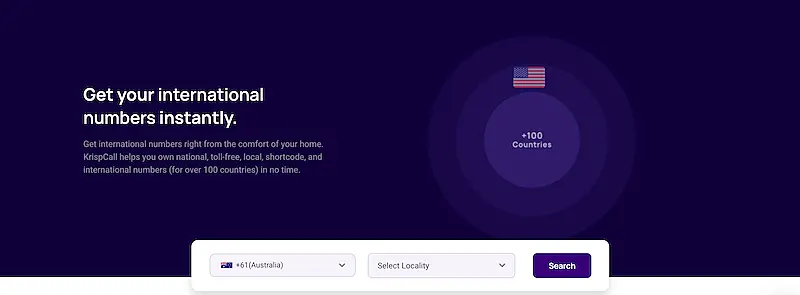 How to create a virtual phone number for whatsapp KrispCall
1 - Access the KrispCall website.
2 - Select the country and the city from where you want your virtual number to be located.
3 - You will see the phone numbers available, it's possible to choose more than one. Select the ones you want.
4 - Create your account.
5 - Select the subscription package and purchase the numbers.
6- After you purchase the number, the steps to set up the WhatsApp account are the same as the other apps.
How to Use WhatsApp with a Landline
Did you know that it's possible to use WhatsApp even if you don't have a cell phone number? You can register the account using the landline number if you don't want to create a virtual phone number.
The difference is that instead of getting the verification code through an SMS, you will need to get it through a call. If you already use WhatsApp, uninstall it and reinstall it again, follow the steps to set up your account, and insert the landline number with the area code.
Select the option to receive the verification code via phone call. If you don't see that alternative, wait until the verification via SMS fails. WhatsApp itself will suggest calling you to send the code. Wait for the call, write down the code, and you can start enjoying the app.
How to Create a WhatsApp Link
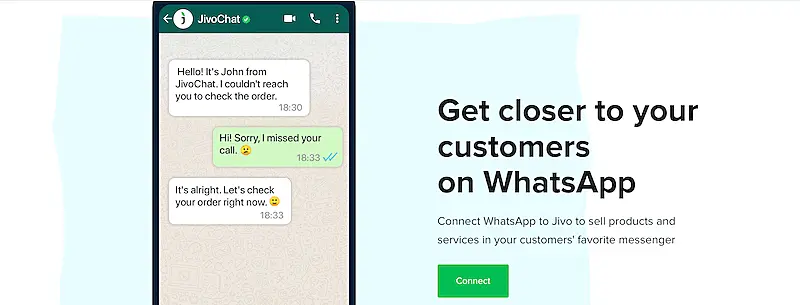 How to create a virtual phone number for whatsapp - JivoChat
Once your WhatsApp account is all set up, and ready to be used, what about creating a link so people can just click on it to send you messages via WhatsApp? That's a great tool to publicize your WhatsApp on your social media pages.
For example, you can post your WhatsApp link on your stories on Instagram and Facebook, so your customers can quickly send a message to your company. JivoChat offers several solutions when it comes to improving communication with your customers, and it also enables you to create WhatsApp links, all you need to do is:
1 - Access JivoChat WhatsApp link generator.
2 - Insert your email address and phone number.
3 - Write a personalized message that people can send you when clicking on the link.
4 - Your link is ready to be used. Enjoy it!
Discover JivoChat Solution for WhatsApp
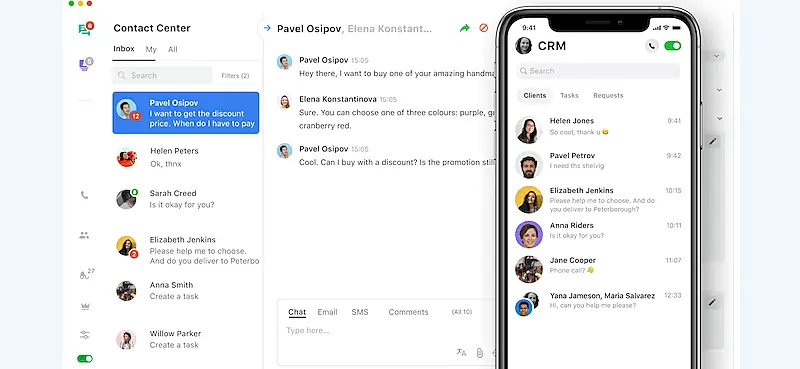
JivoChat can help you boost your presence through WhatsApp to nurture client relationships and increase sales. You can use JivoChat to create campaigns enriched with customer data, present offers to specific audience segments, and keep your customers updated on the latest news about your products and services.
 WhatsApp status quotes - JivoChat
You can keep track of all WhatsApp interactions through the JivoChat app, so you won't miss any important notifications. You will also be able to create customer profiles with their previous interaction history, contact details, and agents' comments.
Enhance Customer Support With WhatsApp
Now that you understand how to create a virtual phone number for WhatsApp, you can offer a dedicated support line without exposing your personal mobile. Train agents to reply quickly, use templates for common questions, and route chats through JivoChat when volume grows.
For inspiration on what customers see first, browse English status quotes for WhatsApp you can adapt for a professional About line.